Tuesday, April 18, 2017

New Feature: Coloring

This has been requested by many users and customers. Actually coloring means 3 new features in Ninja:
  • You can highlight a bookmark by changing its background color
  • You can change the background color of the Category titles
  • Yo can change the background color of the Tab titles


To change the background color of a bookmark, right mouse click on the bookmark and select "Edit".
A color palette has been added to the Edit Bookmark dialog, select a color then click on Save:


To change the background color of a Category title, click on the gear icon next to the Category name and select "Edit Category Name". Then select a color and click on OK:


To change the background color of a Tab title, click on "Edit Tab Name", then select a color and click on OK:


The bookmarks will be displayed with the highlighted colors on the My Bookmarks page, too (and you can change the color here, too, by editing the bookmarks):


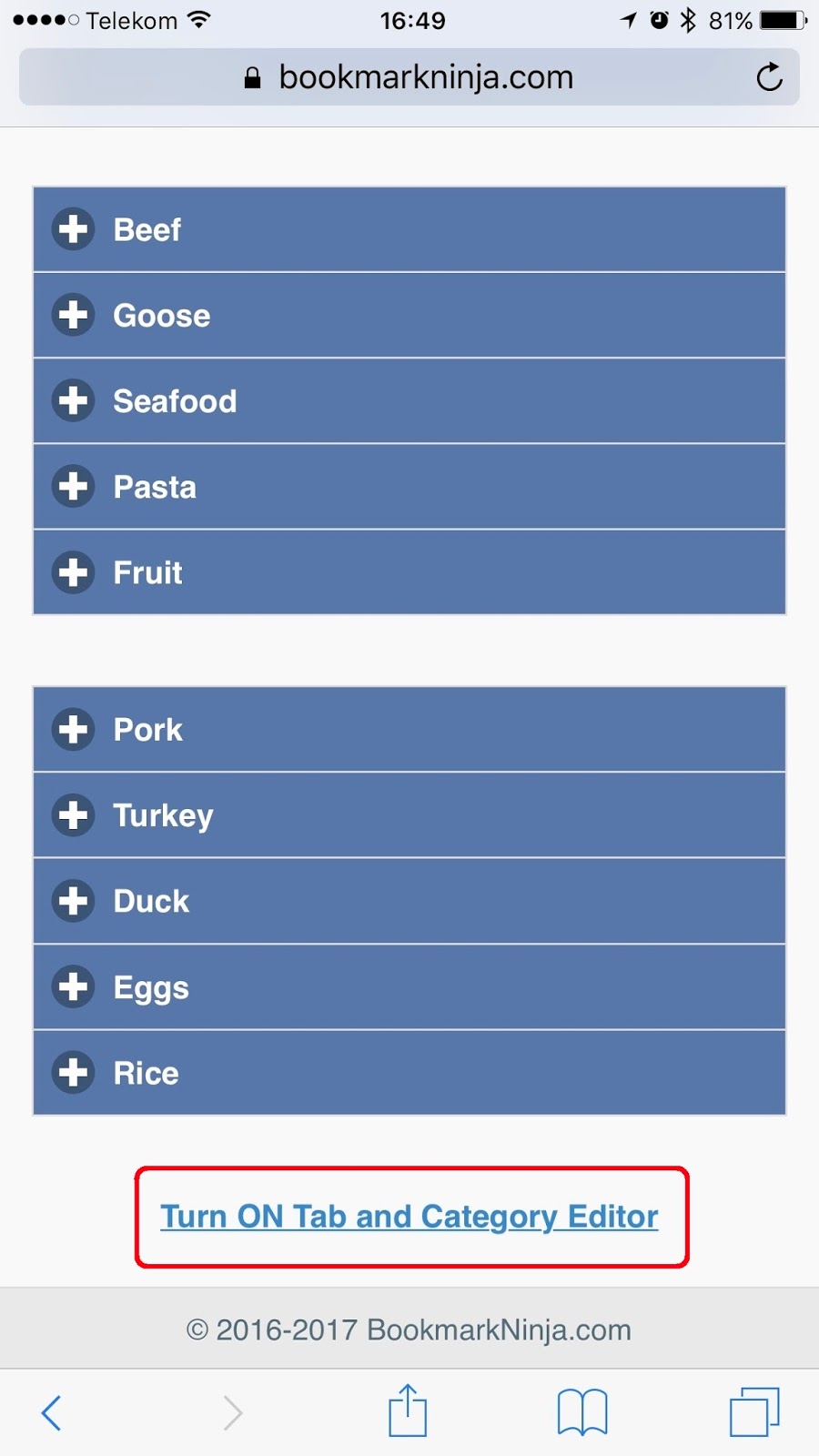
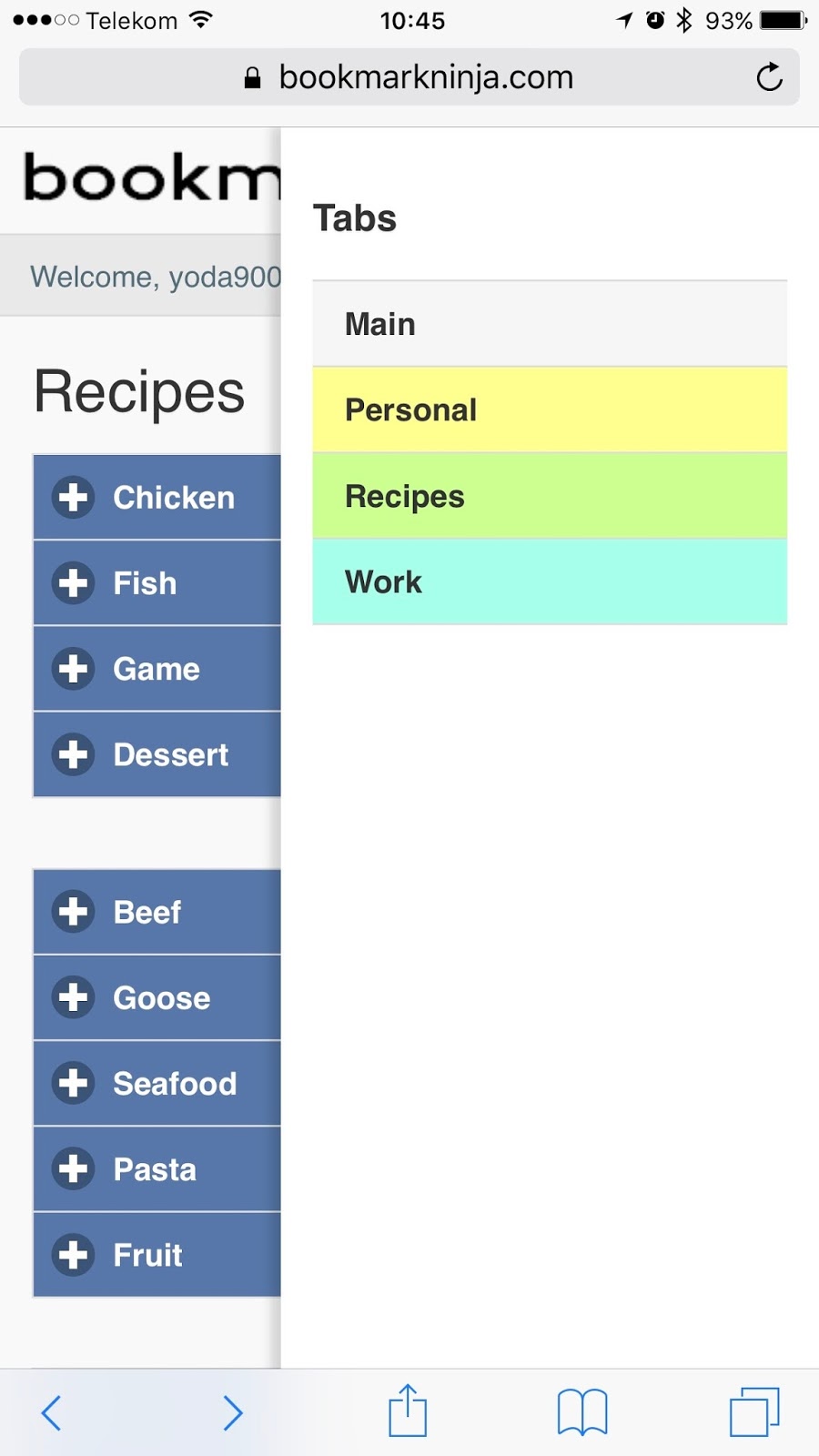
All the coloring options are available on mobile, too, both on the Dashboard and on the My Bookmarks page:


To highlight a bookmark on mobile, tap and hold on the bookmark on the Dashboard, then tap on "Edit".
Select a color and tap on Save Bookmark:


To change the background color of a Category title on mobile, tap on "Turn ON Tab and Category Editor" on the Dashboard, tap on a Category, then tap on "Rename". Select the color and tap on Save:


To change the background color of a Tab title on mobile, tap on "Turn ON Tab and Category Editor" on the Dashboard, then tap on "Rename Tab". Select the color and tap on Save:

Tuesday, March 28, 2017

What Customers Say About Ninja

In the recent weeks I've received quite a few emails from Ninja customers. I can't say enough how much I appreciate these feedback, they make me even more inspired! Thank you so much!!

"You truly have a great product. Great concept and so easy to use."

"I've used a few of these services in the past and dropped them due to lack of features. This one is by far the best I've used and at a great price."

"I started following you on twitter because you're totally a role model for me in development."


"I am ready to pay, sign up, become a life long member, recommend it to all my clients, and act informally as an evangelist."

"I love the functionality as well, very nice job!"

"It is really fantastic and has changed the way I use the internet in a fundamental way."

"Now with the Dashboard I have a portal that also works as a catalog and organizing framework for all my various interests."

"It is not every day that I find a new product that I immediately realize I absolutely cannot live without."

"I like the Bookmarks Ninja because I have a visual memory and it helps me group and find the bookmarks I need in an organized way."

"Super cool! Great new feature. Love it!"

Monday, March 27, 2017

New Feature: Collapse and Expand Category Groups on Dashboard

A small but pretty useful feature has been added to Ninja. The category groups on the Dashboard can be collapsed and expanded. There is an up or down arrow icon next to the gear icon in the category group header. Click on the the arrow icon to collapse or expand the category group.


Wednesday, March 8, 2017

New purchase workflow with PayPal Express Checkout

The former PayPal integration was not perfect. Sometimes users had to wait too long for the PayPal process to complete, sometimes the full-page redirect to Ninja didn't happen and the account had to be updated manually. It worked, but it was not perfect.

Today a new purchase workflow has been integrated, the PayPal Express Checkout:
"The Express Checkout flow replaces the full-page redirect experience and keeps the buyer on your web page throughout the entire checkout flow. On desktops, buyers check out in a lightbox, which is a secure window that overlays your website. On tablets and smart phones, buyers access the PayPal payment screens in full-page mode." (source: developer.PayPal.com).


Sunday, March 5, 2017

A review that gets me even more motivated

An awesome review about Ninja by Emma Sousa, owner of Cloud Clerical.
The reason why I really appreciate this review is that Emma regularly uses Ninja in her daily work and life, and she wrote this article based on her real life user experiences. Please click here to read the review!


Thursday, February 23, 2017

New Feature: Alphabetic Sorting on Dashboard

This feature has been requested by quite a few users. And I totally agree, you can find a bookmark visually faster if the bookmarks are alphabetically sorted.

On the desktop computers click on one of the Category Groups' menu and select either "Sort A-Z" or "Sort Z-A". The bookmarks in the Category will be alphabetically sorted from A to Z or Z to A. It's that simple.


  1. On mobile devices first tap on "Turn ON Tab and Category Editor" on the Dashboard.
  2. Open the Category you want to sort and tap on either "Sort A-Z" or "Sort Z-A".
  3. When sorting is complete tap on "Turn OFF Tab and Category Editor" to return to the Dashboard Bookmarks.

Wednesday, February 15, 2017

Tip of the day: How to make Send Bookmarks via Email remember the email address?

This is supported by the browsers. Make sure Autofill is enabled in your browser. If it is enabled then next time when you want to send bookmarks to the same recipient just start typing the email address, the browser will autocomplete it, you don't need to enter the full email address again.


Most of the browsers have this setting turned on by default. If not, please check this link to find out how to enable Autofill in the different browsers.