Showing posts with label add bookmark. Show all posts

Monday, August 17, 2026

Fix: Add Bookmark via Email Issue on iOS

We’ve fixed an issue that could prevent bookmarks shared using the “Share via Email” option from being added correctly to Bookmark Ninja.

The issue was caused by a change in the format of the emails generated when sharing from Chrome on iOS. Other browsers may have been affected as well.

We’ve updated the email parser to handle the new format, and the fix has already been deployed.

If you use Share via Email to add bookmarks to Bookmark Ninja, everything should now work normally again.

If you still experience any issues, please let us know.

Tuesday, June 10, 2025

New Firefox Browser Extensions for Bookmark Ninja

New versions of the Firefox Add to Ninja and Bookmark All Tabs extensions are now available:
  • You can now assign shortcut keys to both extensions.
  • A bug where the height of the extension windows was not set correctly has been fixed.
If you have automatic extension updates enabled in Firefox, the extensions will update automatically. If not, you can update them manually or remove and reinstall them.

New version numbers

Add to Ninja: 1.0.0.6
Bookmark All Tabs: 2.0.0.2

How to Assign Shortcut Keys to the Extensions

  1. Click the menu icon (≡) in the top-right corner of Firefox.
  2. Select Add-ons and themes.
  3. Click Extensions on the left.
  4. Click the gear icon next to Manage Your Extensions.
  5. Select Manage Extension Shortcuts.
  6. Enter your preferred shortcuts next to each extension.

For Chrome users

The shortcut key assignment feature has already been available for some time.

Feel free to reach out if you have any questions.

Wednesday, March 19, 2025

Improvement: Adding Emails and Phone Numbers as Links

In addition to the most common link protocols (such as http://, https://, ftp://, ftps://, etc.), you can now add phone numbers (tel:) and email addresses (mailto:) as links.

Clicking these links will automatically initiate a call (on mobile browsers) or open the default email client with the recipient’s email pre-filled in the “To” field.


How to Add a Phone Number or Email to the Dashboard:

(1) Open the Dashboard in Bookmark Ninja (click Dashboard in the main menu).

(2) Click the gear icon next to a category name.

(3) Select Add Bookmark.

(4) In the Title field, enter the name of the phone number’s or email’s owner.

(5) In the URL field, enter the phone number or email address using one of these formats:

  • tel:+1-123-456-7890
  • mailto:example@gmail.com

(6) Optionally, add tags and notes.

(7) Click Add.


How to Add a Phone Number or Email to the Catalog:

(1) Open the My Bookmarks page in Bookmark Ninja (click My Bookmarks in the main menu).

(2) Click Catalog in the top right corner.

(3) Click Add Bookmark.

(4) In the Title field, enter the name of the phone number’s or email’s owner.

(5) In the URL field, enter the phone number or email address using one of these formats:

  • tel:+1-123-456-7890
  • mailto:example@gmail.com

(6) Optionally, add tags and notes.

(7) Click Add.

Monday, November 11, 2024

How to Organize Your ChatGPT Conversations with Bookmark Ninja?

If you're a regular ChatGPT user, you’ve likely noticed how challenging it can be to find older conversations. Bookmark Ninja offers a convenient way to save and organize links to your ChatGPT chats, making it easy to revisit past conversations anytime you need them.

To learn more about using ChatGPT with Bookmark Ninja, check out this post on Medium.

Thursday, May 16, 2024

New browser extensions for Chrome

Google has introduced a new Application Programming Interface (API) for the Chrome extensions. Starting from June 2024, only extensions that support the new API will remain functional. The code for the "Add to Ninja" and "Bookmark All Tabs" Chrome extensions has been completely rewritten to comply with the new API. The updated extensions are now available in the Chrome Web Store.

By default installed extensions are automatically updated in Chrome. The new version number for both the "Add to Ninja" and "Bookmark All Tabs" extensions is 3.0.0.0. To verify the version number, right-click on the extension icon on the Chrome toolbar and select "Manage extensions". If you still see the old version number (starting with 1.0.0 or 2.0.0), please manually update the extensions. If you see the version number 3.0.0.0 then no action is required.

The "Add to Ninja" bookmarklet remains unaffected. If you are using it, no action is required.

Monday, May 6, 2024

Preparing for the upcoming Chrome extensions

Google has introduced a new Application Programming Interface (API) for the Chrome extensions. Starting from June 2024, only extensions that support the new API will remain functional. The code for the "Add to Ninja" and "Bookmark All Tabs" Chrome extensions have to be rewritten to comply with the new API. Today's update includes necessary modifications to the Bookmark Ninja code to accommodate these changes in the extensions. The new extensions are also coming soon. Stay tuned for updates!

Sunday, October 29, 2023

Today's update includes an important bug fix

Today's update includes the fix for the "Add to Ninja bookmarklet doesn't work in Safari on iOS" issue.

The issue has to do with how the new version of mobile Safari saves the JavaScript code. This new behaviour breaks the JavaScript code of the "Add to Ninja" bookmarklet. This impacts only the users who recently installed the bookmarklet in Safari on iOS. Users who installed it earlier still can use it without any problem.

The JavaScript code of the "Add to Ninja" bookmarklet has been modified so that the way the new Safari saves the code will not make it unusable.

If your "Add to Ninja" bookmarklet doesn't work in Safari on iOS, please delete it and reinstall it following the steps described here: How to install the bookmarklet in your mobile browser?

Please contact us at support@bookmarkninja.com if you have any questions or if there's anything we can help you with.

Saturday, October 28, 2023

New installation of the "Add to Ninja" bookmarklet doesn't work in the latest version of Safari on iOS

If you install the "Add to Ninja" bookmarklet in the latest version of Safari on iOS, the "Add to Ninja" bookmarklet will not work. The issue has to do with how the new mobile Safari saves the javascript code. If you installed the bookmarklet earlier then the issue doesn't affect you. If you have this problem please let me know this by sending an email to support@bookmarkninja.com and I will send you the updated bookmarklet script that fixes this issue. I will also update the script on the website ASAP.

Thursday, February 16, 2023

Bug fix in today's update

Today's update includes a bug fix for the following issue:

When you entered tags during adding or editing a bookmark, the position of the tag autocomplete popped up panel was sometimes incorrect. It happened only in desktop browsers, in mobile browsers it worked fine.

The correct position of the tag autocomplete panel

Friday, June 10, 2022

Introducing the new UI component library

The UI component library in Bookmark Ninja was 6 years old, so it was time to update it to a newer version. The update of the UI component library was a big work that took several months to complete. It affects both the desktop and mobile UI. Updating the library for the mobile UI was the more complicated task, it required rewriting about 80% of the mobile UI code. The work that had to be done on the desktop UI was less, it affected about 10% of the code.

What are the benefits of having an updated UI component library?

It was necessary to update the UI component library in order to keep up with the improvements of the browsers and to minimize the possible incompatibilities.

Also the new UI library includes a lot of improvements and bug fixes that will provide a better user experience:

  • The rendering of the UI components is faster.
  • Now additional UI components are available that we can use in the future developments of Bookmark Ninja.
  • The new UI component library provides a solution for the "blank page flash at page load" Chrome issue.
  • During integrating the new UI component library all the known UI related bugs have been fixed.

What does the new UI look like?

The UI in the desktop browsers looks like the old one, there aren't noticeable differences, the big change is under the hood.

In mobile browsers the UI got a nicer, cleaner look. The mobile UI components have been updated in order to be more consistent with the desktop UI while the mobile specific screen layouts were kept:


Are there any functional changes?

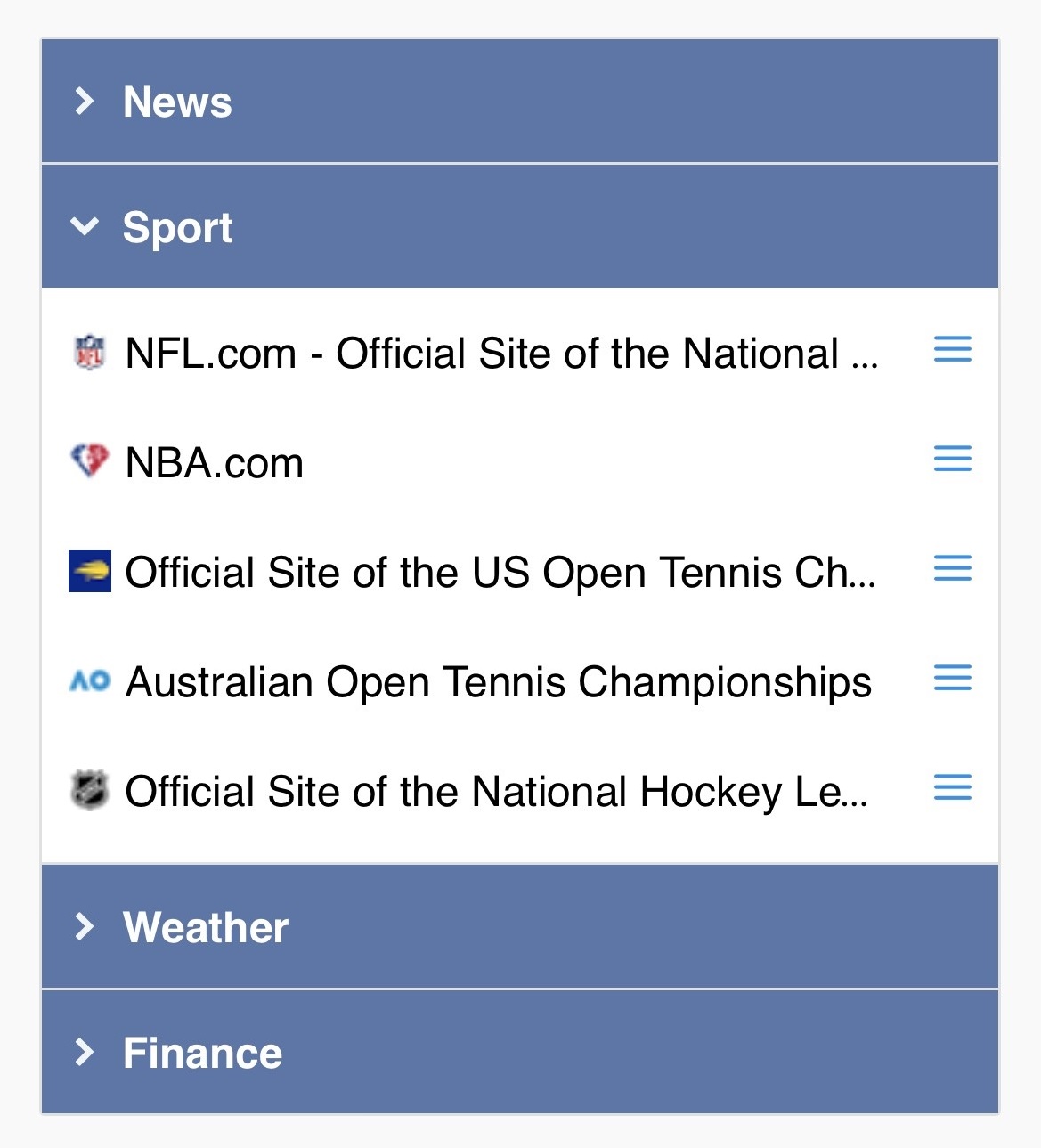
Yes, there is one. Until now you could invoke the bookmark context menu on the Dashboard in mobile browsers with "tap and hold". From now on you have to tap on the new menu icons (3 blue, horizontal lines) next to the bookmarks. The "tap and hold" functionality has been removed.

In desktop browsers this functionality hasn't changed, you can still invoke the context menu of the bookmarks on the Dashboard with a right mouse click on the bookmarks.

Tuesday, September 14, 2021

New feature: "Strict URL match" can be turned off in "Detect already bookmarked pages" and "Find duplicates"

From now "Strict URL match" can be turned off so "http vs https" and "www" will be ignored and the following URL variants will be considered the same:

https://www.bookmarkninja.com
http://www.bookmarkninja.com
https://bookmarkninja.com
http://bookmarkninja.com

If "Strict URL match" is turned on then URLs will be considered the same only if they exactly match each other (this is how it worked until now).

Please check the below blog posts to learn about how the "Strict URL match" switch has been implemented in "Detect already bookmarked pages" and "Find duplicates":

Improved "Detect already bookmarked pages"

Improved "Find and delete duplicates"

Sunday, September 12, 2021

Improved "Detect already bookmarked pages"

When you want to bookmark a web page, this feature detects if the page has already been added to Bookmark Ninja.

Make sure the feature is turned on (by default it is turned off).

(1) Click on "Settings" in the main menu.

(2) Turn the "Detect already bookmarked pages" switch on.

(3) The "Strict URL match" switch will show up. By default this switch is checked. If you uncheck it "http vs https" and "www" will be ignored and the following URL variants will be considered the same:

​https://www.bookmarkninja.com
http://www.bookmarkninja.com
https://bookmarkninja.com
http://bookmarkninja.com

​If "Strict URL match" is checked then URLs will be considered the same only if they exactly match each other.


        (4) Load any web page in your browser then click on the "Add to Ninja" bookmarklet or browser extension button.

        (5) In the bottom of the Add Bookmark dialog you will see one of the following messages:

        • Not bookmarked yet
        • Page is already in the Catalog
        • Page is already in tab name > category name
        Page hasn't been bookmarked yet


        Page has already been added to the "Tuscany Italy" category on the "Travel" tab

        The feature is available on mobile, too, when you bookmark a page in your mobile browser:


        Related blog post: Edit already added bookmark in the "Add Bookmark" dialog box

        Monday, July 5, 2021

        New "Bookmark All Tabs" browser extension

        The "Bookmark All Tabs" browser extension has been updated in both the Google Chrome Web Store and the Mozilla Add-Ons Store.

        The new version (2.0.0.1) contains a bugfix for the "Request-URI Too Long" error message that occurred sometimes when there was a large number of open tabs in the browser. From now you can bookmark unlimited number of tabs without any problem.

        If you have the automatic extension update set in your browser then the extension will be updated automatically if not then please update it manually.

        You can learn more about the "Bookmark All Tabs" extension in this blog post.

        Wednesday, July 15, 2020

        New feature: Edit already added bookmark in the "Add Bookmark" dialog box

        If you use the "Detect already bookmarked pages" feature, from now you will be able to view and edit the properties of the existing bookmark in the "Add Bookmark" dialog box:

        (1) Make sure the "Detect already bookmarked pages" switch is turned on on the Settings page under "Add bookmark settings" (select Settings in the main menu of Bookmark Ninja).

        (2) To bookmark the current web page in your browser click on the "Add to Ninja" browser extension or bookmarklet button.

        (3) If the web page has already been bookmarked you will see the "Page is already in..." message at the bottom of the "Add Bookmark" dialog box.

        (4) Click on "Edit" next to the "Page is already in..." message.


        (5) The properties (title, URL, tags, notes, location: catalog or dashboard/tab/category) of the existing bookmark will be loaded in the dialog box and the caption of the"Add" button will change to "Save". If more than one copy of the bookmark with the same URL exists then the latest edited/added one will be loaded.


        (6) Make any changes if necessary then click on the "Save" button. No new copy of the bookmark will be added but the existing bookmark's properties (including its location) will be updated.

        The feature is available in mobile browsers, too:


        Related blog posts and user guide topics:


        Tuesday, April 21, 2020

        Bookmark Ninja extensions for Microsoft Edge

        Extensions in the Chrome web store now can be installed in the new Edge Chromium. If you want to use the Bookmark Ninja extensions in Edge, please update to the latest version of Edge and install the Chrome extensions.

        To install the Chrome extensions in Edge:
        1. Select "Tools/Install Browser Buttons" in the main menu of Bookmark Ninja.
        2. Click on the "Install the..." links next to the Chrome icon.
        3. During the installation make sure to select "Allow extensions from other stores" in the banner at the top of the page.

        Monday, April 20, 2020

        Firefox extensions moved to the Firefox add-ons store

        Until now Firefox extensions have been hosted on the Bookmark Ninja server. Today the extensions were moved to the Firefox add-ons store. If you install the extensions from there, the extensions will be automatically updated in your browser if new versions of the extensions are available.

        It is recommended to remove your current Bookmark Ninja extensions in Firefox and install the ones from the Firefox add-ons store. To install the extensions select "Tools/Install Browser Buttons" in the main menu of Bookmark Ninja, then click on the links next to the Firefox icon. The links will lead you to the extensions in the Firefox add-ons store.

        Thursday, April 16, 2020

        The "Add to Ninja" bookmarklet button has been updated

        The update aims to fix the incorrect height of the "Add to Ninja" dialog box in some browsers.

        You will see a notification message about the update in the "Add to Ninja" dialog box until you complete the update:
        To update the bookmarklet button please follow the steps below:
        1. Right mouse click on the "Add to Ninja" bookmarklet button on your browser's bookmarks bar then select Delete (or Remove or Move to Trash).
        2. Select "Tools/Install Browser Buttons" in the main menu of Bookmark Ninja or click on "Install Browser Buttons" in the notification message (see above).
        3. On the "Install Browser Buttons" page under the "Bookmarklets for any Browser" section drag and drop the new "Add to Ninja" button to the browser's bookmarks bar.

        Thursday, April 2, 2020

        "Bookmark All Tabs" browser extension for Chrome and Firefox

        With this new browser extension you can bookmark all open tabs in the browser with one click.The browser extension is available for Chrome and Firefox.

        To install the browser extension
        1. Select "Tools/Install Browser Buttons" in the main menu of Bookmark Ninja.
        2. Under the "Browser Extensions" section click on Install the "Bookmark All Tabs" extension for Chrome/Firefox.
        3. Follow the instructions to complete the installation of the extension.


        To bookmark all tabs in your browser

        (1) Click on the "Bookmark All Tabs" extension icon in the top right corner of your browser:


        (2) A similar dialog box will come up when you use the "Add to Ninja" extension that bookmarks only the active tab. Since you bookmark all the tabs the "Title" and "URL" fields will not be displayed on the dialog box:

        (3) Select where you want to add the tabs to: "Catalog" or "Dashboard".

        (4) If you selected the "Dashboard", then select a "Tab" and "Category" from the drop down lists.

        (5) Optionally you can add tags and notes. The tags and notes will be added to each of the bookmarked pages.

        (6) Click on the "Add" button.


        Using the "Detect already bookmarked pages" tool

        The "Detect already bookmarked pages" tool works the same way as it works when you bookmark only the active page. If neither of the tabs has been bookmarked yet then you will see the "Tabs not bookmarked yet" message at the bottom of the "Bookmark All Tabs" dialog box.

        If any of the tabs has been already bookmarked you will see a message like "3 of 7 tabs already bookmarked":


        Click on "already bookmarked" to see the list of the already bookmarked tabs:


        Tuesday, March 17, 2020

        Improvement: Adding tags when bookmarking a page via email (add@bookmarkninja.com) on mobile

        Currently there are 2 options to a bookmark a web page in mobile browsers:

        (A) Invoke the "Add to Ninja" bookmarklet.

        (B) Share/send the link to the add@bookmarkninja.com email address.

        You can find additional, detailed information about adding bookmarks on mobile devices in the User Guide.

        From now if you send a web page to the add@bookmarkninja.com email address you can also add tags:
        1. In your mobile browser tap on Share and select the appropriate menu to send the website link in email.
        2. Enter add@bookmarkninja.com in the recipient ("To") field.
        3. In the email body type "Tags:" or "Tag:" or "T:" (without the quotes) at the beginning of a new line (you can use lowercase characters, too, it's not case-sensitive).
        4. Then type the tags separated by commas (see examples below).
        5. Send the email. Make sure you send the link from the email address that was used to create your Ninja account.
        6. The bookmark will be added to the Catalog with the specified tags.
        Examples:
        Tags: recipes, gordon ramsay, beef
        Tag: recipes, gordon ramsay, beef
        T: recipes, gordon ramsay, beef

        You can have the "tags" line anywhere in the email body, it can be before or after the URL. What is important, you have to start typing at the beginning of a new or blank line in the email body.


        Monday, January 6, 2020

        Update 2020.01.06 rolled out

        • Made the height of the items in the tag autocomplete drop-down list smaller. If a tag was typed in the third row of the Tags input filed and there were 6 suggestions in the autocomplete list then the dialog had to be resized to see the last item in the list. Now the last item of the 6 suggestions is always visible.
        • Fixed bug: There were scenarios when the Category finder drop-down list on the Dashboard contained duplicated category names.
        • Updated footer year.