Showing posts with label improvement. Show all posts

Tuesday, June 10, 2025

New Firefox Browser Extensions for Bookmark Ninja

New versions of the Firefox Add to Ninja and Bookmark All Tabs extensions are now available:
  • You can now assign shortcut keys to both extensions.
  • A bug where the height of the extension windows was not set correctly has been fixed.
If you have automatic extension updates enabled in Firefox, the extensions will update automatically. If not, you can update them manually or remove and reinstall them.

New version numbers

Add to Ninja: 1.0.0.6
Bookmark All Tabs: 2.0.0.2

How to Assign Shortcut Keys to the Extensions

  1. Click the menu icon (≡) in the top-right corner of Firefox.
  2. Select Add-ons and themes.
  3. Click Extensions on the left.
  4. Click the gear icon next to Manage Your Extensions.
  5. Select Manage Extension Shortcuts.
  6. Enter your preferred shortcuts next to each extension.

For Chrome users

The shortcut key assignment feature has already been available for some time.

Feel free to reach out if you have any questions.

Wednesday, March 19, 2025

Improvement: Adding Emails and Phone Numbers as Links

In addition to the most common link protocols (such as http://, https://, ftp://, ftps://, etc.), you can now add phone numbers (tel:) and email addresses (mailto:) as links.

Clicking these links will automatically initiate a call (on mobile browsers) or open the default email client with the recipient’s email pre-filled in the “To” field.


How to Add a Phone Number or Email to the Dashboard:

(1) Open the Dashboard in Bookmark Ninja (click Dashboard in the main menu).

(2) Click the gear icon next to a category name.

(3) Select Add Bookmark.

(4) In the Title field, enter the name of the phone number’s or email’s owner.

(5) In the URL field, enter the phone number or email address using one of these formats:

  • tel:+1-123-456-7890
  • mailto:example@gmail.com

(6) Optionally, add tags and notes.

(7) Click Add.


How to Add a Phone Number or Email to the Catalog:

(1) Open the My Bookmarks page in Bookmark Ninja (click My Bookmarks in the main menu).

(2) Click Catalog in the top right corner.

(3) Click Add Bookmark.

(4) In the Title field, enter the name of the phone number’s or email’s owner.

(5) In the URL field, enter the phone number or email address using one of these formats:

  • tel:+1-123-456-7890
  • mailto:example@gmail.com

(6) Optionally, add tags and notes.

(7) Click Add.

Monday, January 20, 2025

Improvements in Today's Update

This update focuses on improving performance and security and addressing minor issues. Here's a summary of what’s new:
  • Optimized session manager code for improved security.
  • Rewritten some parts of the Dashboard code to enhance page loading speed.
  • Fixed minor bugs.

Thursday, September 5, 2024

Enhancements in Today's Update

Today's update includes important improvements:

  • Bug Fixes: Minor issues have been resolved to improve performance.
  • Security Enhancements: Security patches have been applied for better protection.
  • Usability Improvements: Small changes were made to streamline navigation and enhance user experience.

Thursday, May 16, 2024

New browser extensions for Chrome

Google has introduced a new Application Programming Interface (API) for the Chrome extensions. Starting from June 2024, only extensions that support the new API will remain functional. The code for the "Add to Ninja" and "Bookmark All Tabs" Chrome extensions has been completely rewritten to comply with the new API. The updated extensions are now available in the Chrome Web Store.

By default installed extensions are automatically updated in Chrome. The new version number for both the "Add to Ninja" and "Bookmark All Tabs" extensions is 3.0.0.0. To verify the version number, right-click on the extension icon on the Chrome toolbar and select "Manage extensions". If you still see the old version number (starting with 1.0.0 or 2.0.0), please manually update the extensions. If you see the version number 3.0.0.0 then no action is required.

The "Add to Ninja" bookmarklet remains unaffected. If you are using it, no action is required.

Monday, May 6, 2024

Preparing for the upcoming Chrome extensions

Google has introduced a new Application Programming Interface (API) for the Chrome extensions. Starting from June 2024, only extensions that support the new API will remain functional. The code for the "Add to Ninja" and "Bookmark All Tabs" Chrome extensions have to be rewritten to comply with the new API. Today's update includes necessary modifications to the Bookmark Ninja code to accommodate these changes in the extensions. The new extensions are also coming soon. Stay tuned for updates!

Thursday, August 10, 2023

Improvements

Today's update includes minor bug fixes and important improvements:

  • Memory management on the server side has been enhanced to improve performance during high traffic loads. 
  • Database connection configuration has been modified to support a larger number of simultaneous connections.
  • The email sender library has been upgraded to a more recent version in order to improve security. 
  • The email sender code has been modified to utilize a more modern protocol that improves security.

Monday, February 6, 2023

Payment module updated

The payment module on the Account page has been replaced with the latest checkout payment module from PayPal. Now there is a dedicated button for the credit/debit card payment, so it's easier to make the payment with a credit/debit card without having a PayPal account.

Card payment was available in the past, too, but users first had to click on the PayPal button then select the credit/debit card option which was somehow confusing.

Other than the dedicated card payment button the new payment module includes the latest developments, fixes and updates from PayPal.

Wednesday, January 11, 2023

Improvements in today's update

Today's update contains performance improvements (some code has been optimized), security improvements and an advanced bot detection mechanism that prevents bots from creating fake accounts.

Friday, June 10, 2022

Introducing the new UI component library

The UI component library in Bookmark Ninja was 6 years old, so it was time to update it to a newer version. The update of the UI component library was a big work that took several months to complete. It affects both the desktop and mobile UI. Updating the library for the mobile UI was the more complicated task, it required rewriting about 80% of the mobile UI code. The work that had to be done on the desktop UI was less, it affected about 10% of the code.

What are the benefits of having an updated UI component library?

It was necessary to update the UI component library in order to keep up with the improvements of the browsers and to minimize the possible incompatibilities.

Also the new UI library includes a lot of improvements and bug fixes that will provide a better user experience:

  • The rendering of the UI components is faster.
  • Now additional UI components are available that we can use in the future developments of Bookmark Ninja.
  • The new UI component library provides a solution for the "blank page flash at page load" Chrome issue.
  • During integrating the new UI component library all the known UI related bugs have been fixed.

What does the new UI look like?

The UI in the desktop browsers looks like the old one, there aren't noticeable differences, the big change is under the hood.

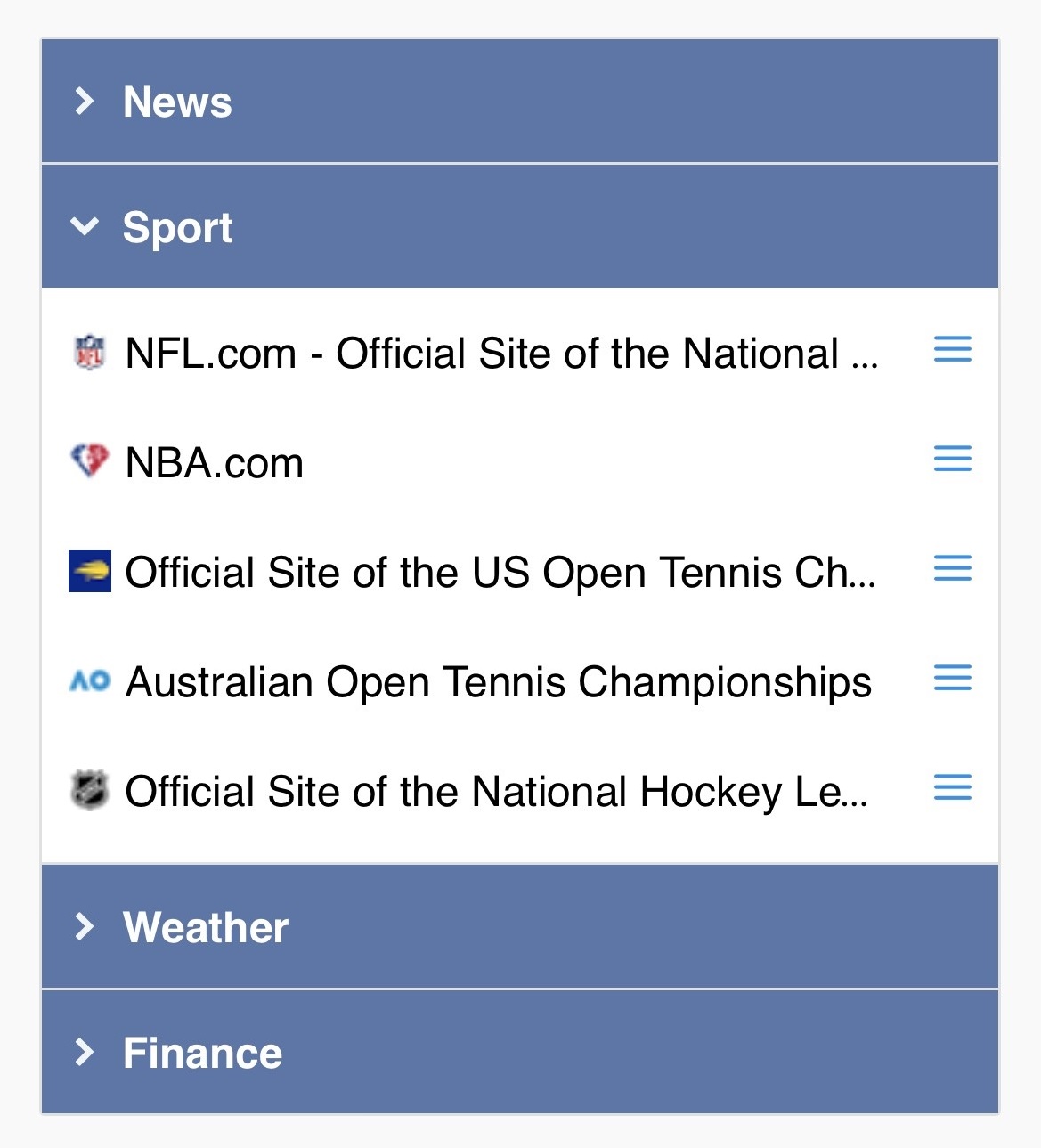
In mobile browsers the UI got a nicer, cleaner look. The mobile UI components have been updated in order to be more consistent with the desktop UI while the mobile specific screen layouts were kept:


Are there any functional changes?

Yes, there is one. Until now you could invoke the bookmark context menu on the Dashboard in mobile browsers with "tap and hold". From now on you have to tap on the new menu icons (3 blue, horizontal lines) next to the bookmarks. The "tap and hold" functionality has been removed.

In desktop browsers this functionality hasn't changed, you can still invoke the context menu of the bookmarks on the Dashboard with a right mouse click on the bookmarks.

Friday, March 4, 2022

The update of the UI component library

The work of updating the UI component library started in December last year. You can read about the details (why this update is necessary, what will change, what will the new UI look like etc.) in this blog post.

By now it turned out that I underestimated the amount of work that has to be done to update the mobile UI so the end of February 2022 deadline couldn't be kept. Also while working on updating the UI component library other higher priority tasks keep popping up like fixing the broken favicons due to changes in the Google service or making security improvements.

Based on the current estimates the new UI component library will be available in Q2 2022. I would rather not specify an exact target date because of the complexity of the work and because of the ongoing adjustments that are required by changes in the 3rd party services.

Please feel free to reach out to me if you have any questions.

Thursday, February 10, 2022

Security improvements

Today's update contains several security improvements.

As a result of the improvements the maximum length of the password has been limited to 128 characters. It's not common but if your current password is longer than 128 characters then you won't be able to login and you will need to reset your password. To reset your password please click on "Forgot Password?" on the login page and follow the instructions there.

If you used passwords longer than 128 characters for password protected shared tabs then please change those passwords, too.

Wednesday, December 1, 2021

Updating the UI component library - the next big project

The UI component library in Bookmark Ninja is 6 years old, it's time to update it to the latest version that has been released in 2021. The update of the UI component library affects both the desktop and mobile UI. Updating the library for the mobile UI is the more complicated task, it requires to rewrite about the 80% of the mobile UI code. The work that has to be done on the desktop UI is less, it affects about the 10% of the code.

What will be the benefits of having an updated UI component library?

It's necessary to update the UI component library in order to keep up with the improvements of the browsers and to minimize the possible incompatibilities.

Also the new UI library includes a lot of improvements and bug fixes that will provide a better user experience:

  • The rendering of the UI components is faster.
  • Additional UI components are available that we can use in future developments of Bookmark Ninja.
  • The new UI component library provides a solution for the "blank page flash at page load" Chrome issue.

What will the new UI look like?

The UI in the desktop browsers will look like the current UI, there won't be noticeable differences, the big change is under the hood. In mobile browsers the UI will be a little bit different. The mobile UI components will be updated in order to be more consistent with the desktop UI, but the mobile specific layouts will be kept. Also the mobile UI will have a nicer, cleaner look than the current one.

When will the new UI library be available in Bookmark Ninja?

Based on the current estimates the integration of the new UI component library will take 2-3 months. The target date is end of February 2022.

Please feel free to reach out to me if you have any questions.

Thursday, November 25, 2021

Improvements in today's update

Improvement #1
From now a page loading progress indicator (a spinning circle) is displayed when a full page reload happens on the My Bookmarks page. Full page reload happens when you change the type of the bookmarks (Catalog/Dashboard/All), change the Tab/Category (if Dashboard is selected), change the order of the bookmarks/tags, select/deselect tags or start a search.

Improvement #2
"Date Updated" has been renamed to "Date Modified" in the bookmark order selection list box on the My Bookmarks page.

Improvement #3
During the import process until now the "Date Modified" values of the bookmarks were set to the date of the import date. From now "Date Modified" is set to the "Date Added" value read from the bookmark file. Of course if any "Date Modified" information is available in the bookmark file (which is very rare) then that value will be set. If neither "Date Added" and nor "Date Modified" is available in the bookmark file then the date of import will be set for both.

Improvement #4
Changed some colors in dark mode to improve readability.

Tuesday, November 16, 2021

Improvements and bug fixes in today's update

Improvement #1
From now the Tab and Category selection list boxes are not displayed on the My Bookmarks page when "All" or "Catalog" is selected. Until now the list boxes have only been disabled. The Tab and Category selection list boxes are displayed only when "Dashboard" is selected.

Improvement #2
From now "None" is displayed under "Available tags" and "Selected tags" when the tag list is empty.

Improvement #3
The order of the tags under "Selected tags" on the My Bookmarks page have been changed from alphabetical order to the order of the tags have been selected.

Improvement #4
The "Add folder names as tags" checkbox has been removed on the Import page. From now the folder names are always added to the bookmarks as tags during the import process.

Improvement #5
After import is finished “The basics of organizing your imported bookmarks" dialog box is displayed with a few tips.

Improvement #6
Improved the loading speed of the My Bookmarks page when it is invoked by selecting the "My Bookmarks" menu.

Bug fix #1
After moving or deleting multiple selected bookmarks on the My Bookmarks page, if all the bookmarks were selected in the list, the number of selected bookmarks and the number of total bookmarks were not updated in the top left corner.

Bug fix #2
When bookmark files with long file names were uploaded or error messages were displayed on the Import page, the layout of the page sometimes broke.

Tuesday, September 14, 2021

New feature: "Strict URL match" can be turned off in "Detect already bookmarked pages" and "Find duplicates"

From now "Strict URL match" can be turned off so "http vs https" and "www" will be ignored and the following URL variants will be considered the same:

https://www.bookmarkninja.com
http://www.bookmarkninja.com
https://bookmarkninja.com
http://bookmarkninja.com

If "Strict URL match" is turned on then URLs will be considered the same only if they exactly match each other (this is how it worked until now).

Please check the below blog posts to learn about how the "Strict URL match" switch has been implemented in "Detect already bookmarked pages" and "Find duplicates":

Improved "Detect already bookmarked pages"

Improved "Find and delete duplicates"

Monday, September 13, 2021

Improved "Find and delete duplicates"

A bookmark is considered to be duplicated if it has the same URL as another bookmark. Follow the below steps to find the duplicated bookmarks.

(1) On the My Bookmarks page click on "Find Duplicates" (under the Search field). "Find Duplicates" is available only if "All" is selected (in the top right corner) and no tag is selected (the list under "Selected tags" is empty).


(2) On the "Find Duplicates" dialog box the "Strict URL match" switch is always checked by default. If you uncheck it "http vs https" and "www" will be ignored and the following URL variants will be considered the same:

https://www.bookmarkninja.com
http://www.bookmarkninja.com
https://bookmarkninja.com
http://bookmarkninja.com

If "Strict URL match" is checked then URLs will be considered the same only if they exactly match each other.

(3) Enter a tag that will be added to the duplicated bookmarks. By default the tag is "duplicate".

(4) Select one of the below 2 options:

Add tag only to duplicates
Select this option if you simply want to delete the duplicated bookmarks and don't want to review them.

Add tag to both originals and duplicates
Select this option if you manually want to compare the original bookmarks with their duplicates and want to decide which bookmarks to delete.

(5) Click on the "Find Duplicates button. If you have many bookmarks and duplicates the process may take a while.


Deleting the duplicated bookmarks

If you chose the option "Add tag only to duplicates":

(1) On the My Bookmarks page select the "duplicate" tag (or the one you have specified) in the Available tags list.

(2) Click on "Select All".

(3) Click on "Delete".

If you chose the option "Add tag to both originals and duplicates":

(1) On the My Bookmarks page select the "duplicate" tag (or the one you have specified) in the Available tags list.

(2) Select "Domain: A➔Z" in the Order dropdown list on the right side.

(3) Review the bookmarks, compare the original bookmarks with their duplicates and manually select the bookmarks that you want to delete.

(4) Click on "Delete".

IMPORTANT: Since the "duplicate" tag (or the one you have specified) has been added to the original bookmarks, too, do NOT delete all the bookmarks marked with this tag.

Sunday, September 12, 2021

Improved "Detect already bookmarked pages"

When you want to bookmark a web page, this feature detects if the page has already been added to Bookmark Ninja.

Make sure the feature is turned on (by default it is turned off).

(1) Click on "Settings" in the main menu.

(2) Turn the "Detect already bookmarked pages" switch on.

(3) The "Strict URL match" switch will show up. By default this switch is checked. If you uncheck it "http vs https" and "www" will be ignored and the following URL variants will be considered the same:

​https://www.bookmarkninja.com
http://www.bookmarkninja.com
https://bookmarkninja.com
http://bookmarkninja.com

​If "Strict URL match" is checked then URLs will be considered the same only if they exactly match each other.


        (4) Load any web page in your browser then click on the "Add to Ninja" bookmarklet or browser extension button.

        (5) In the bottom of the Add Bookmark dialog you will see one of the following messages:

        • Not bookmarked yet
        • Page is already in the Catalog
        • Page is already in tab name > category name
        Page hasn't been bookmarked yet


        Page has already been added to the "Tuscany Italy" category on the "Travel" tab

        The feature is available on mobile, too, when you bookmark a page in your mobile browser:


        Related blog post: Edit already added bookmark in the "Add Bookmark" dialog box

        Tuesday, August 3, 2021

        Improvements and bug fixes in today's update

        Improvement #1
        The maximum length of the notes that you can add to the bookmarks has been increased from 255 characters to 1000 characters.

        Improvement #2
        From now the multiple line notes are displayed with line breaks on the My Bookmarks page and in the hover tooltips on the Dashboard (if it is set on the Settings page) and on the shared Tabs. Until now line breaks were ignored and multiple line notes were displayed in one line.

        Bug fix #1
        There were rare cases when Notes/Description didn't get imported from the html bookmarks file. It mostly happened when users imported bookmarks from older bookmarking services. From now Notes/Description are always imported even if the html bookmarks file was created by an old bookmarking service.

        Bug fix #2
        There were rare cases when the import process failed because of incorrect date values in the html bookmarks file. From now the import won't fail even if the bookmarks file contains incorrect date values.

        Thursday, May 20, 2021

        New feature: Dynamic Tabs Bar

        If you have many Tabs on the Dashboard you may have multiple rows of Tabs in the Tabs Bar which takes a lot of space on the screen.

        The Dynamic Tabs Bar makes it possible to have a single row Tabs Bar even if you have many Tabs that can only fit in multiple rows. With the new Dynamic Tabs Bar settings you can simply limit the number of Tabs that are displayed in the Tabs Bar. To access the non-visible Tabs you have to click on "More Tabs..." next to the Tab titles. Optionally you can also pin the first X number of Tabs in the Tabs Bar, these Tabs will be always visible, the rest of the Tabs in the Tabs Bar will change dynamically when you select a Tab after clicking on "More Tabs...".

        Without the Dynamic Tabs Bar

        With the Dynamic Tabs Bar turned on


        To turn on the Dynamic Tabs Bar

        (1) Select "Settings" in the main menu of Bookmark Ninja.

        (2) Under "Dynamic Dashboard Tabs Bar" click on the dropdown listbox next to "Maximum number of Tabs to show" and select the number of Tabs.

        (3) Optionally you can pin the first X Tabs: click on the dropdown list next to "Number of pinned Tabs" and select the number of Tabs you want to pin in the Tabs Bar (always the first X Tabs will be pinned).


        To select a Tab that is not visible in the Tabs Bar after you turned on the Dynamic Tabs Bar

        (1) On the Dashboard click on "More Tabs..." next to the Tab titles in the Tabs Bar.

        (2) All your Tab titles will appear, click on the one that you want to open.

        (3) The selected Tab will open and you will see again a subset of the Tabs in the Tabs Bar including the selected Tab.


        To turn off the Dynamic Tabs Bar

        (1) Select "Settings" in the main menu of Bookmark Ninja.

        (2) Under "Dynamic Dashboard Tabs Bar" click on the dropdown listbox next to "Maximum number of Tabs to show" and select "Show all Tabs".


        The Dynamic Tabs Bar is only available in desktop browser, in mobile browser there is no Tabs Bar.