Showing posts with label my bookmarks. Show all posts

Thursday, February 16, 2023

Bug fix in today's update

Today's update includes a bug fix for the following issue:

When you entered tags during adding or editing a bookmark, the position of the tag autocomplete popped up panel was sometimes incorrect. It happened only in desktop browsers, in mobile browsers it worked fine.

The correct position of the tag autocomplete panel

Thursday, October 6, 2022

New feature: Auto-tagging when a bookmark is moved to the Catalog

If you turn on this feature Tab and Category names will be automatically added as tags when a bookmark is moved from the Dashboard to the Catalog.

This will make finding bookmarks easier after you move them to the Catalog with the purpose of archiving them.

By default this feature is turned off. To turn "Auto-tag when moving to Catalog" on follow the steps below:

(1) Launch Bookmark Ninja in your browser.

(2) Select "Settings" in the main menu of Bookmark Ninja.

(3) Under "Global settings" check the checkbox next to "Auto-tag when moving to Catalog".


If "Auto-tag when moving to Catalog" is turned on, the Tab and Category names will be automatically added to the bookmarks as tags in the following cases:

(A) On the Dashboard you right mouse click on a bookmark and select "Move to Catalog".

(B) On the My Bookmarks page you click on the menu icon next to a bookmark (which is on the Dashboard) and select "Move to Catalog''.

(C) On the My Bookmarks page you select multiple bookmarks then click on "Move to Catalog".

(D) On the "Add to Ninja" dialog box if "Detect already bookmarked pages" is turned on, it finds an already added bookmark, you click on "Edit" and change "Add to" from Dashboard to Catalog.

When the Tab and Category names are added as tags the commas are removed and the names are converted to lowercase.

Friday, June 10, 2022

Introducing the new UI component library

The UI component library in Bookmark Ninja was 6 years old, so it was time to update it to a newer version. The update of the UI component library was a big work that took several months to complete. It affects both the desktop and mobile UI. Updating the library for the mobile UI was the more complicated task, it required rewriting about 80% of the mobile UI code. The work that had to be done on the desktop UI was less, it affected about 10% of the code.

What are the benefits of having an updated UI component library?

It was necessary to update the UI component library in order to keep up with the improvements of the browsers and to minimize the possible incompatibilities.

Also the new UI library includes a lot of improvements and bug fixes that will provide a better user experience:

  • The rendering of the UI components is faster.
  • Now additional UI components are available that we can use in the future developments of Bookmark Ninja.
  • The new UI component library provides a solution for the "blank page flash at page load" Chrome issue.
  • During integrating the new UI component library all the known UI related bugs have been fixed.

What does the new UI look like?

The UI in the desktop browsers looks like the old one, there aren't noticeable differences, the big change is under the hood.

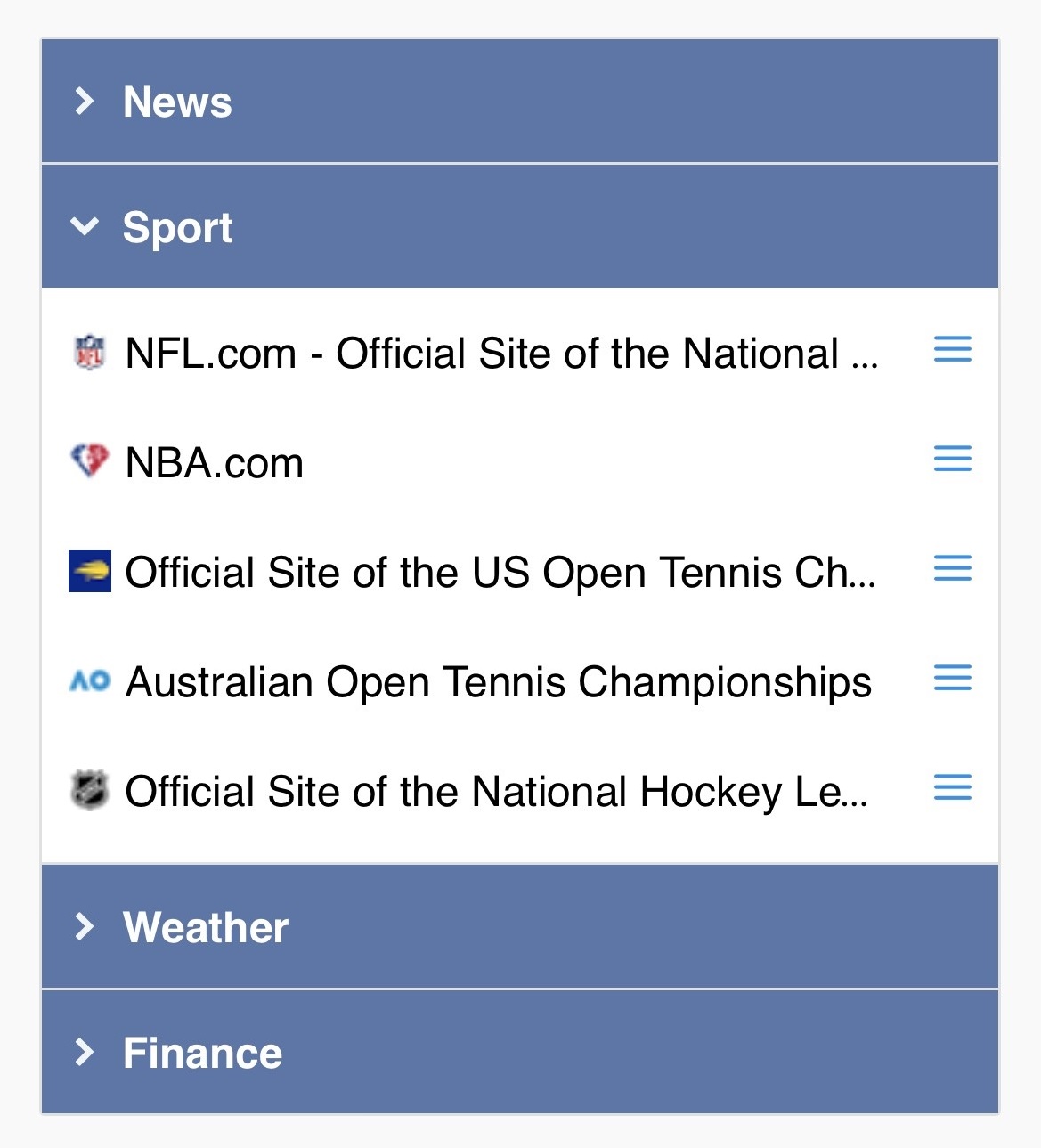
In mobile browsers the UI got a nicer, cleaner look. The mobile UI components have been updated in order to be more consistent with the desktop UI while the mobile specific screen layouts were kept:


Are there any functional changes?

Yes, there is one. Until now you could invoke the bookmark context menu on the Dashboard in mobile browsers with "tap and hold". From now on you have to tap on the new menu icons (3 blue, horizontal lines) next to the bookmarks. The "tap and hold" functionality has been removed.

In desktop browsers this functionality hasn't changed, you can still invoke the context menu of the bookmarks on the Dashboard with a right mouse click on the bookmarks.

Thursday, November 25, 2021

Improvements in today's update

Improvement #1
From now a page loading progress indicator (a spinning circle) is displayed when a full page reload happens on the My Bookmarks page. Full page reload happens when you change the type of the bookmarks (Catalog/Dashboard/All), change the Tab/Category (if Dashboard is selected), change the order of the bookmarks/tags, select/deselect tags or start a search.

Improvement #2
"Date Updated" has been renamed to "Date Modified" in the bookmark order selection list box on the My Bookmarks page.

Improvement #3
During the import process until now the "Date Modified" values of the bookmarks were set to the date of the import date. From now "Date Modified" is set to the "Date Added" value read from the bookmark file. Of course if any "Date Modified" information is available in the bookmark file (which is very rare) then that value will be set. If neither "Date Added" and nor "Date Modified" is available in the bookmark file then the date of import will be set for both.

Improvement #4
Changed some colors in dark mode to improve readability.

Tuesday, November 16, 2021

Improvements and bug fixes in today's update

Improvement #1
From now the Tab and Category selection list boxes are not displayed on the My Bookmarks page when "All" or "Catalog" is selected. Until now the list boxes have only been disabled. The Tab and Category selection list boxes are displayed only when "Dashboard" is selected.

Improvement #2
From now "None" is displayed under "Available tags" and "Selected tags" when the tag list is empty.

Improvement #3
The order of the tags under "Selected tags" on the My Bookmarks page have been changed from alphabetical order to the order of the tags have been selected.

Improvement #4
The "Add folder names as tags" checkbox has been removed on the Import page. From now the folder names are always added to the bookmarks as tags during the import process.

Improvement #5
After import is finished “The basics of organizing your imported bookmarks" dialog box is displayed with a few tips.

Improvement #6
Improved the loading speed of the My Bookmarks page when it is invoked by selecting the "My Bookmarks" menu.

Bug fix #1
After moving or deleting multiple selected bookmarks on the My Bookmarks page, if all the bookmarks were selected in the list, the number of selected bookmarks and the number of total bookmarks were not updated in the top left corner.

Bug fix #2
When bookmark files with long file names were uploaded or error messages were displayed on the Import page, the layout of the page sometimes broke.

Monday, November 15, 2021

New feature: Tag order by number of occurrences

Until now the tags under "Available tags" on the My Bookmarks page have been ordered alphabetically. From now you can order the tags by number of their occurrences, too. A Tag order selection list box has been added to the My Bookmarks page where you can select the order of the tags: "Occurrences: high → low" or "A→Z".

The "order by number of occurrences" can be especially useful when you organize your imported bookmarks. The folder names from your old bookmark manager or browser are converted to tags during the import process. Having the tags ordered by number of occurrences makes sure that the top level folder names appear at the beginning of the tag list so it's easier to find the folder names and browse the folders by selecting/deselecting the tags.

The "order by number of occurrences" also gives you a statistical overview about the usage of your tags.

The new "Tag order" selection list box on the My Bookmarks page is available on mobile, too:

Tuesday, September 14, 2021

New feature: "Strict URL match" can be turned off in "Detect already bookmarked pages" and "Find duplicates"

From now "Strict URL match" can be turned off so "http vs https" and "www" will be ignored and the following URL variants will be considered the same:

https://www.bookmarkninja.com
http://www.bookmarkninja.com
https://bookmarkninja.com
http://bookmarkninja.com

If "Strict URL match" is turned on then URLs will be considered the same only if they exactly match each other (this is how it worked until now).

Please check the below blog posts to learn about how the "Strict URL match" switch has been implemented in "Detect already bookmarked pages" and "Find duplicates":

Improved "Detect already bookmarked pages"

Improved "Find and delete duplicates"

Monday, September 13, 2021

Improved "Find and delete duplicates"

A bookmark is considered to be duplicated if it has the same URL as another bookmark. Follow the below steps to find the duplicated bookmarks.

(1) On the My Bookmarks page click on "Find Duplicates" (under the Search field). "Find Duplicates" is available only if "All" is selected (in the top right corner) and no tag is selected (the list under "Selected tags" is empty).


(2) On the "Find Duplicates" dialog box the "Strict URL match" switch is always checked by default. If you uncheck it "http vs https" and "www" will be ignored and the following URL variants will be considered the same:

https://www.bookmarkninja.com
http://www.bookmarkninja.com
https://bookmarkninja.com
http://bookmarkninja.com

If "Strict URL match" is checked then URLs will be considered the same only if they exactly match each other.

(3) Enter a tag that will be added to the duplicated bookmarks. By default the tag is "duplicate".

(4) Select one of the below 2 options:

Add tag only to duplicates
Select this option if you simply want to delete the duplicated bookmarks and don't want to review them.

Add tag to both originals and duplicates
Select this option if you manually want to compare the original bookmarks with their duplicates and want to decide which bookmarks to delete.

(5) Click on the "Find Duplicates button. If you have many bookmarks and duplicates the process may take a while.


Deleting the duplicated bookmarks

If you chose the option "Add tag only to duplicates":

(1) On the My Bookmarks page select the "duplicate" tag (or the one you have specified) in the Available tags list.

(2) Click on "Select All".

(3) Click on "Delete".

If you chose the option "Add tag to both originals and duplicates":

(1) On the My Bookmarks page select the "duplicate" tag (or the one you have specified) in the Available tags list.

(2) Select "Domain: A➔Z" in the Order dropdown list on the right side.

(3) Review the bookmarks, compare the original bookmarks with their duplicates and manually select the bookmarks that you want to delete.

(4) Click on "Delete".

IMPORTANT: Since the "duplicate" tag (or the one you have specified) has been added to the original bookmarks, too, do NOT delete all the bookmarks marked with this tag.

Tuesday, August 3, 2021

Improvements and bug fixes in today's update

Improvement #1
The maximum length of the notes that you can add to the bookmarks has been increased from 255 characters to 1000 characters.

Improvement #2
From now the multiple line notes are displayed with line breaks on the My Bookmarks page and in the hover tooltips on the Dashboard (if it is set on the Settings page) and on the shared Tabs. Until now line breaks were ignored and multiple line notes were displayed in one line.

Bug fix #1
There were rare cases when Notes/Description didn't get imported from the html bookmarks file. It mostly happened when users imported bookmarks from older bookmarking services. From now Notes/Description are always imported even if the html bookmarks file was created by an old bookmarking service.

Bug fix #2
There were rare cases when the import process failed because of incorrect date values in the html bookmarks file. From now the import won't fail even if the bookmarks file contains incorrect date values.

Friday, July 23, 2021

Fix for the broken UI layout caused by the latest browser updates

The latest Chrome and Firefox updates broke the layout on the Find Duplicates dialog box. Today's Bookmark Ninja update contains a fix for the problem.

Wednesday, April 28, 2021

"Rename tag" context menu has been added to the "Selected tags" list

To rename a tag you have to right mouse click on a tag in the "Available tags" list on the My Bookmarks page and select the "Rename tag" context menu.

From now you can rename a tag in the "Selected tags" list, too, the same way:

In mobile browsers tap and hold on a tag to invoke the context menu.

Related topic: How to rename tags?

Thursday, April 15, 2021

Improvement: Sorting the bookmarks by domain on the My Bookmarks page

From now you can sort the bookmark list by the domain name of the bookmarks' URLs. You still have the option to sort the bookmarks by URL but if you want to have the bookmarks with the same domain next to each other in the list then you have to sort them by domain.

In desktop browsers: On the My Bookmarks page click on the Order dropdown list on the right side and select either "Domain: A→Z" or "Domain: Z→A".

In mobile browsers: On the My Bookmarks page click on the "Bookmark list order" dropdown list at the bottom of the page and select either "Domain: A→Z" or "Domain: Z→A".

The sorting by domain option will be necessary for the upcoming improvement for the find duplicates feature.

Wednesday, February 24, 2021

Improvements in today's update

  • If the bookmark selection contained both Catalog and Dashboard bookmarks on the My Bookmarks page then no "Move" menus were available to select. The "Move" menus appeared only when you had a selection of only Catalog bookmarks or only Dashboard bookmarks. Now you can select "Move to another Category" or "Move to catalog" when you have both Catalog and Dashboard bookmarks selected.
  • If you had multiple selected bookmarks on the My Bookmarks page and clicked on "Move to Catalog" then the bookmarks were immediately moved to the Catalog. From now a confirmation message box comes up to avoid accidental moves.

Thursday, October 1, 2020

Improved "Tag Quick Finder"

Until now if you started to type characters in the "Tag Quick Finder" text field on the My Bookmarks page, tags that start with the typed text were displayed in the Available Tags list. From now not just tags starting with the typed text are displayed in the list but multiple word tags that contain any word that starts with the typed text will be also displayed.

Thursday, September 17, 2020

Improved "Find and Delete Duplicates"

This is an old post. Please check the updated post about the improved version of the "Find and delete duplicates" tool here: Improved "Find and delete duplicates"

The "Find and Delete Duplicates" tool has been improved with the option to manually review the original bookmarks and their duplicates and to decide which bookmarks to delete.

(1) On the My Bookmarks page click on "Find Duplicates" (under the Search field). "Find Duplicates" is available only if "All" is selected (in the top right corner) and no tag is selected (the list under "Selected tags" is empty).


(2) On the "Find Duplicates" dialog box enter a tag that will be added to the duplicated bookmarks. By default the tag is "duplicate".

(3) Select one of the below 2 options:

Add tag only to duplicates
Select this option if you simply want to delete the duplicated bookmarks and don't want to review them.

Add tag to both originals and duplicates
Select this option if you manually want to compare the original bookmarks with their duplicates and want to decide which bookmarks to delete.

(4) Click on the "Find Duplicates button. If you have many bookmarks and duplicates the process may take a while.


Deleting the duplicated bookmarks

If you chose the option "Add tag only to duplicates":

(1) On the My Bookmarks page select the "duplicate" tag (or the one you have specified) in the Available tags list.

(2) Click on "Select All".

(3) Click on "Delete".

If you chose the option "Add tag to both originals and duplicates":

(1) On the My Bookmarks page select the "duplicate" tag (or the one you have specified) in the Available tags list.

(2) Select "URL: A➔Z" in the Order dropdown list on the right side.

(3) Review the bookmarks, compare the original bookmarks with their duplicates and manually select the bookmarks that you want to delete.

(4) Click on "Delete".

IMPORTANT: Since the "duplicate" tag (or the one you have specified) has been added to the original bookmarks, too, do NOT delete all the bookmarks marked with this tag.

Monday, February 17, 2020

Improved coloring

There were some Bookmark/Category/Tab title background color and text color combinations that were difficult to read. From now the color of the text automatically adjusts when you set the background color of a Bookmark/Category/Tab title.

Monday, February 10, 2020

New Colors

From now other than the 8 standard colors you can set 100 new colors for the Bookmark/Category/Tab titles. Each color has its dark mode variant when you switch to dark mode.

On the color selection dialog boxes you will find 3 groups of colors:
  • The original 8 colors (for compatibility reason)
  • 50 new pastel colors
  • 50 new vivid colors
The color palette in desktop browsers


In desktop browsers


To change the color of a Bookmark title on the Dashboard:
  1. Right mouse click on a Bookmark.
  2. Select "Change color" in the context menu.
  3. Select a color on the color selection dialog box then click on "Save".

To change the color of a Category title on the Dashboard:
  1. Click on the gear icon next to a Category title.
  2. Select "Change color" in the context menu.
  3. Select a color on the color selection dialog box then click on "Save".

To change the color of a Tab title on the Dashboard:
  1. Click on "Tabs" under the tab titles.
  2. Select "Change color" in the context menu.
  3. Select a color on the color selection dialog box then click on "Save".

To change the color of a Bookmark title on the My Bookmarks page:
  1. Click on the menu symbol (3 vertical lines) next to a Bookmark title.
  2. Select "Change color" in the context menu.
  3. Select a color on the color selection dialog box then click on "Save".

In mobile browsers


To change the color of a Bookmark title on the Dashboard:
  1. Tap and hold on a Bookmark.
  2. Select "Change color" in the context menu.
  3. Select a color on the color selection page then tap on "Save".

To change the color of a Category title on the Dashboard:
  1. Tap on "Turn ON Tab and Category Editor" at the bottom of the page.
  2. Tap on a Category to make the commands visible.
  3. Tap on "Change color".
  4. Select a color on the color selection page then tap on "Save".

To change the color of a Tab title on the Dashboard:
  1. Tap on "Turn ON Tab and Category Editor" at the bottom of the page.
  2. Select a Tab by tapping on the right arrow next to the active Tab title.
  3. Tap on "Change Tab color" under the Tab title.
  4. Select a color on the color selection page then tap on "Save".

To change the color of a Bookmark title on the My Bookmarks page:
  1. Tap on "Show bookmarks" at the top of the page to see bookmark list.
  2. Tap on the menu symbol (3 vertical lines) next to a bookmark title.
  3. Select "Change color" in the context menu.
  4. Select a color on the color selection page then tap on "Save".
The color palette in mobile browsers

Saturday, December 28, 2019

Improved session timeout handling

Today's update contains changes that will improve session timeout handling in desktop browsers:
  • The "Session Timeout. Please click on OK to reload the page." message typically came up after a while when the user opened and used Bookmark Ninja parallel in several browser tabs. From now in desktop browsers if page refresh is required the page will automatically reload (without showing any message) when the browser tab gets the focus.
  • The "Session Timeout" message has been renamed to "Page Expired" because it describes the situation more precisely (page can expire not just because of session timeout).
  • "Page Expired" ("Session Timeout") message will be still displayed when
    1. the user leaves Bookmark Ninja open in a browser window for a long time (e.g. Dashboard for 12 hours) without any interaction.
    2. a new build is rolled out to the server and the user has Bookmark Ninja open in their browser window.

Wednesday, December 4, 2019

Minor bug fixes

Today's update contains 2 minor bug fixes:

(1) The width of the tag autocomplete drop-down list (on the dialog boxes opened from the My Bookmarks page) was too wide. Now it has the correct width.

(2) The Category selection drop-down lists (when you add a bookmark or move a bookmark) contains the category names in alphabetical order. If you had category names starting with both lowercase and uppercase characters, they were sorted case-sensitive (lower case characters came after the upper case characters in the list). It has been fixed, category names are now sorted case-insensitive.

Monday, November 11, 2019

Fixed bug: After typing space in tag input field autocomplete panel closed

When you start typing a tag in the tag input field the autocomplete panel pops up if the typed text matches any of the already used tags.

If you typed a space (because the tag contained a space) the autocomplete panel closed. This was a bug that has been fixed in the latest update. Now after the space you can continue typing the rest of the tag and the autocomplete panel will show the suggestions as expected.