What is Two-Factor Authentication and how does it work?
Two-factor authentication (2FA), also known as multi-factor authentication (MFA) is a security process that requires a user to provide two different forms of identification before being granted access to a system, account, or device.
The first factor is typically a username and password, the second factor is something the user has, such as an email, mobile device or hardware token.
Bookmark Ninja uses an email-based two-factor authentication. Email-based two-factor authentication is a security process that uses email as the second factor of authentication.
When the user enters their username and password to log in to their Bookmark Ninja account, an email containing a unique one-time security code is sent to the email address associated with the account. The user must then enter this code on the login screen in addition to their password to complete the login process.
By requiring two different factors, 2FA provides an additional layer of security and makes it much more difficult for unauthorized users to gain access to a system or account. Even if a password is compromised or stolen, the second factor acts as a barrier that makes it difficult for attackers to gain access.
How to turn on Two-Factor Authentication?
(1) Select "User/Account" in the main menu of Bookmark Ninja.
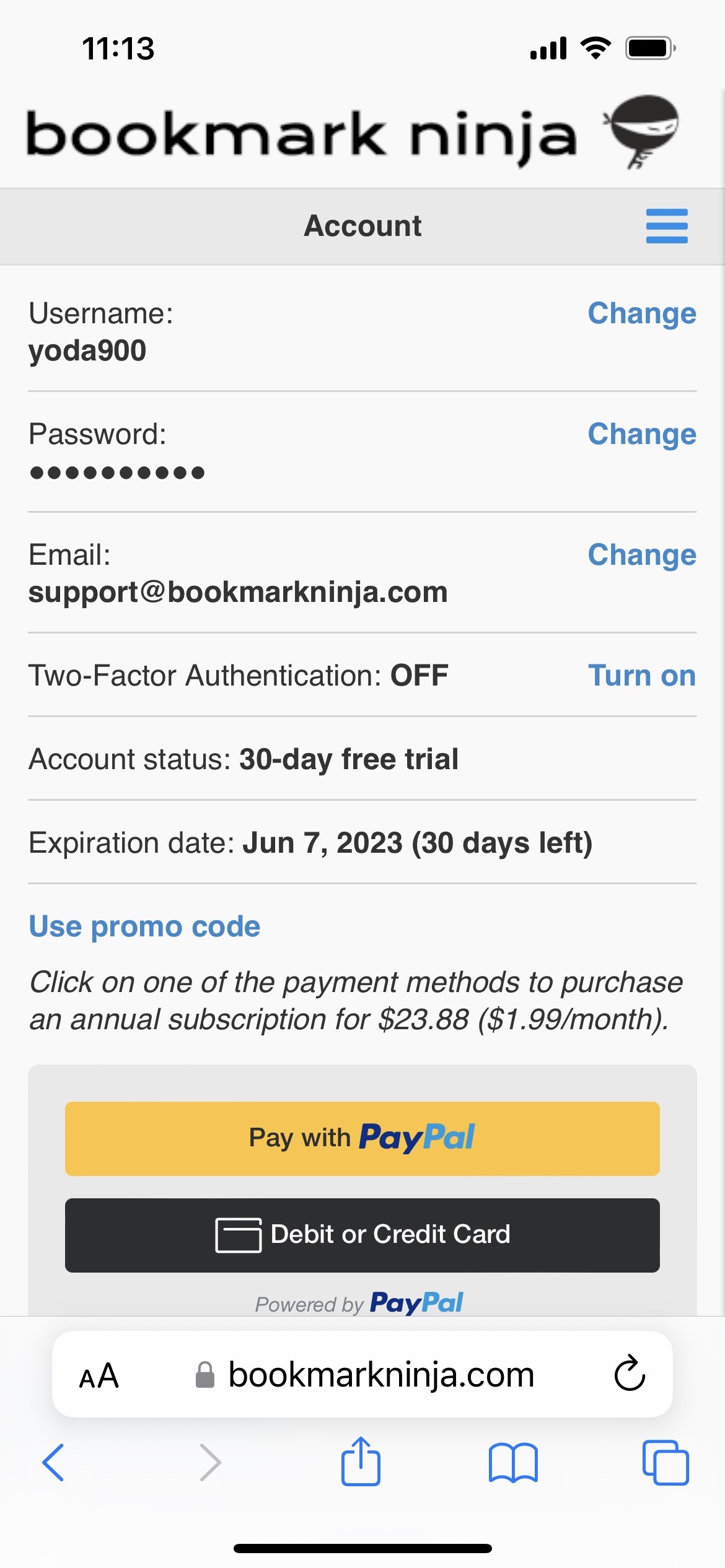
(2) On the "Account" page click on "Turn on" next to "Two-Factor Authentication: OFF". A security code will be sent to your email address and the "Turn on Two-Factor Authentication" dialog box will show up.
(3) Enter the code on the "Turn on Two-Factor Authentication" dialog box then click on "Turn ON".
How to login when Two-Factor Authentication is turned on?
(1) Click on "Login" in the main menu of Bookmark Ninja.
(2) Enter your username and password then click on the "Login" button or press enter. If it's not your computer then make sure to uncheck "Keep me logged in".
(3) If Two-Factor Authentication is turned on, a security code will be sent to your email address associated with your account.
(4) On the Two-Factor Authentication screen enter the code and click on the "Submit" button or press enter.
The security code that is sent to your email address is valid for 5 minutes.
If invalid codes are entered 5 times in a row you will need to re-enter your password and username.
How to turn off Two-Factor Authentication?
(1) Select "User/Account" in the main menu of Bookmark Ninja.
(2) On the "Account" page click on "Turn off" next to "Two-Factor Authentication: ON". A security code will be sent to your email address and the "Turn off Two-Factor Authentication" dialog box will show up.
(3) Enter the code on the "Turn off Two-Factor Authentication" dialog box then click on "Turn OFF".
How to change your email address when Two-Factor Authentication is turned on?
Since Bookmark Ninja is using an email-based Two-Factor Authentication, if you want to change your email address then the new email address has to be verified.
(1) Select "User/Account" in the main menu of Bookmark Ninja.
(2) Click on "Change" next to your email address.
(3) Enter your password and your new email address then click on "Save". A security code will be sent to your new email address and the "Verifying Email Address" dialog box will show up.
(4) Enter the code on the "Verifying Email Address" dialog box then click on "Submit".
Two-Factor Authentication on mobile devices
Two-Factor Authentication works the same way in mobile browsers as in desktop browsers. You can setup 2FA on the Account page and all the 2FA related pages have their mobile optimized versions.