Monday, August 17, 2026

Fix: Add Bookmark via Email Issue on iOS

We’ve fixed an issue that could prevent bookmarks shared using the “Share via Email” option from being added correctly to Bookmark Ninja.

The issue was caused by a change in the format of the emails generated when sharing from Chrome on iOS. Other browsers may have been affected as well.

We’ve updated the email parser to handle the new format, and the fix has already been deployed.

If you use Share via Email to add bookmarks to Bookmark Ninja, everything should now work normally again.

If you still experience any issues, please let us know.

Tuesday, June 10, 2025

New Firefox Browser Extensions for Bookmark Ninja

New versions of the Firefox Add to Ninja and Bookmark All Tabs extensions are now available:
  • You can now assign shortcut keys to both extensions.
  • A bug where the height of the extension windows was not set correctly has been fixed.
If you have automatic extension updates enabled in Firefox, the extensions will update automatically. If not, you can update them manually or remove and reinstall them.

New version numbers

Add to Ninja: 1.0.0.6
Bookmark All Tabs: 2.0.0.2

How to Assign Shortcut Keys to the Extensions

  1. Click the menu icon (≡) in the top-right corner of Firefox.
  2. Select Add-ons and themes.
  3. Click Extensions on the left.
  4. Click the gear icon next to Manage Your Extensions.
  5. Select Manage Extension Shortcuts.
  6. Enter your preferred shortcuts next to each extension.

For Chrome users

The shortcut key assignment feature has already been available for some time.

Feel free to reach out if you have any questions.

Wednesday, June 4, 2025

Transferring your Pocket saves (bookmarks) to Bookmark Ninja

When you export your bookmarks from Pocket, the only available format is CSV. Unfortunately, Pocket does not support the standard HTML bookmarks format. As a result, transferring bookmarks from Pocket to Bookmark Ninja (or other bookmark managers) requires an extra step to convert the CSV file into an HTML bookmarks file.


Step 1: Export Your Bookmarks from Pocket

  1. In Pocket, select Export, then click Export CSV File.
  2. Pocket will email you a link to download a ZIP file containing a CSV file with your bookmarks data.


Step 2: Convert the CSV to an HTML Bookmarks File

  1. Open this link in your browser: https://webcull.com/free-tools/pocket-export-to-bookmarks-html-import-file
  2. Click Browse under "Choose your Pocket Export ZIP file" and select the ZIP file you downloaded from Pocket.
  3. Click Download HTML to get the converted bookmarks file.


Step 3: Import the Bookmarks into Bookmark Ninja

  1. Go to www.bookmarkninja.com in your browser.
  2. From the main menu, select Tools/Import Bookmarks.
  3. Click Browse and select the HTML bookmarks file.
  4. Click Import.


After Importing

All bookmarks will be placed in the Catalog. Pocket tags will be preserved, and any collections used in Pocket will be added as tags.

On the My Bookmarks page, you can further organize your bookmarks by filtering them by tags. You can also move frequently used bookmarks from the Catalog to your Dashboard for quicker access.

Wednesday, March 19, 2025

Improvement: Adding Emails and Phone Numbers as Links

In addition to the most common link protocols (such as http://, https://, ftp://, ftps://, etc.), you can now add phone numbers (tel:) and email addresses (mailto:) as links.

Clicking these links will automatically initiate a call (on mobile browsers) or open the default email client with the recipient’s email pre-filled in the “To” field.


How to Add a Phone Number or Email to the Dashboard:

(1) Open the Dashboard in Bookmark Ninja (click Dashboard in the main menu).

(2) Click the gear icon next to a category name.

(3) Select Add Bookmark.

(4) In the Title field, enter the name of the phone number’s or email’s owner.

(5) In the URL field, enter the phone number or email address using one of these formats:

  • tel:+1-123-456-7890
  • mailto:example@gmail.com

(6) Optionally, add tags and notes.

(7) Click Add.


How to Add a Phone Number or Email to the Catalog:

(1) Open the My Bookmarks page in Bookmark Ninja (click My Bookmarks in the main menu).

(2) Click Catalog in the top right corner.

(3) Click Add Bookmark.

(4) In the Title field, enter the name of the phone number’s or email’s owner.

(5) In the URL field, enter the phone number or email address using one of these formats:

  • tel:+1-123-456-7890
  • mailto:example@gmail.com

(6) Optionally, add tags and notes.

(7) Click Add.

Monday, January 20, 2025

Improvements in Today's Update

This update focuses on improving performance and security and addressing minor issues. Here's a summary of what’s new:
  • Optimized session manager code for improved security.
  • Rewritten some parts of the Dashboard code to enhance page loading speed.
  • Fixed minor bugs.

Monday, November 11, 2024

How to Organize Your ChatGPT Conversations with Bookmark Ninja?

If you're a regular ChatGPT user, you’ve likely noticed how challenging it can be to find older conversations. Bookmark Ninja offers a convenient way to save and organize links to your ChatGPT chats, making it easy to revisit past conversations anytime you need them.

To learn more about using ChatGPT with Bookmark Ninja, check out this post on Medium.

Thursday, September 5, 2024

Enhancements in Today's Update

Today's update includes important improvements:

  • Bug Fixes: Minor issues have been resolved to improve performance.
  • Security Enhancements: Security patches have been applied for better protection.
  • Usability Improvements: Small changes were made to streamline navigation and enhance user experience.

Friday, July 12, 2024

How to Organize Your Bookmarks - Useful Tips

In Bookmark Ninja, you can store your bookmarks either on the Dashboard or in the Catalog.

Dashboard:

  • The Dashboard consists of Tabs, which are collections of Categories organized in columns. Bookmarks are stored in Category boxes.
  • It is recommended to use the Dashboard for your most frequently used bookmarks and limit each Tab to a maximum of 50-150 bookmarks. This makes it easier to quickly find bookmarks visually.
  • It’s better to have fewer bookmarks per Tab and more Tabs overall. If you have many Tabs, you can use the Dynamic Tabs Bar feature.
  • The Dashboard can be considered an advanced Favorites collection.

Catalog:

  • The Catalog is for storing less frequently used bookmarks. It is a simple list of bookmarks accessible on the My Bookmarks page, similar to placing items in a large box and searching for them later when you need something.
  • It is recommended to use tags so you can find bookmarks more easily. When you run a search, both the titles of the bookmarks and the tags are searched. Additionally, you can use the Tag Quickfinder to filter bookmarks by their tags.

Organizing Tips:

  • When organizing your bookmarks, you can move them from the Dashboard to the Catalog and automatically add the Tab and Category names as tags using the Auto Tagging feature.
  • Bookmarks can also be moved from the Catalog to the Dashboard on the My Bookmarks page.

Thursday, May 16, 2024

New browser extensions for Chrome

Google has introduced a new Application Programming Interface (API) for the Chrome extensions. Starting from June 2024, only extensions that support the new API will remain functional. The code for the "Add to Ninja" and "Bookmark All Tabs" Chrome extensions has been completely rewritten to comply with the new API. The updated extensions are now available in the Chrome Web Store.

By default installed extensions are automatically updated in Chrome. The new version number for both the "Add to Ninja" and "Bookmark All Tabs" extensions is 3.0.0.0. To verify the version number, right-click on the extension icon on the Chrome toolbar and select "Manage extensions". If you still see the old version number (starting with 1.0.0 or 2.0.0), please manually update the extensions. If you see the version number 3.0.0.0 then no action is required.

The "Add to Ninja" bookmarklet remains unaffected. If you are using it, no action is required.

Monday, May 6, 2024

Preparing for the upcoming Chrome extensions

Google has introduced a new Application Programming Interface (API) for the Chrome extensions. Starting from June 2024, only extensions that support the new API will remain functional. The code for the "Add to Ninja" and "Bookmark All Tabs" Chrome extensions have to be rewritten to comply with the new API. Today's update includes necessary modifications to the Bookmark Ninja code to accommodate these changes in the extensions. The new extensions are also coming soon. Stay tuned for updates!

Friday, March 15, 2024

Hiccup in the email sending service has been fixed

Today morning, there was a hiccup in the email sending service that prevented users from receiving the 2-factor authentication code and the password reset link. The issue has been resolved. I apologize for any inconvenience caused.

Friday, December 8, 2023

Fix for the error when importing bookmarks from MyMark.me

Today's update includes a fix for the error that occurred when importing bookmarks from the MyMark.me bookmark manager. This issue specifically arose when attempting to import a bookmark HTML file exported from MyMark.me. Bookmark files exported from other bookmark managers were not affected by this error.

Sunday, October 29, 2023

Today's update includes an important bug fix

Today's update includes the fix for the "Add to Ninja bookmarklet doesn't work in Safari on iOS" issue.

The issue has to do with how the new version of mobile Safari saves the JavaScript code. This new behaviour breaks the JavaScript code of the "Add to Ninja" bookmarklet. This impacts only the users who recently installed the bookmarklet in Safari on iOS. Users who installed it earlier still can use it without any problem.

The JavaScript code of the "Add to Ninja" bookmarklet has been modified so that the way the new Safari saves the code will not make it unusable.

If your "Add to Ninja" bookmarklet doesn't work in Safari on iOS, please delete it and reinstall it following the steps described here: How to install the bookmarklet in your mobile browser?

Please contact us at support@bookmarkninja.com if you have any questions or if there's anything we can help you with.

Saturday, October 28, 2023

New installation of the "Add to Ninja" bookmarklet doesn't work in the latest version of Safari on iOS

If you install the "Add to Ninja" bookmarklet in the latest version of Safari on iOS, the "Add to Ninja" bookmarklet will not work. The issue has to do with how the new mobile Safari saves the javascript code. If you installed the bookmarklet earlier then the issue doesn't affect you. If you have this problem please let me know this by sending an email to support@bookmarkninja.com and I will send you the updated bookmarklet script that fixes this issue. I will also update the script on the website ASAP.

Thursday, August 10, 2023

Improvements

Today's update includes minor bug fixes and important improvements:

  • Memory management on the server side has been enhanced to improve performance during high traffic loads. 
  • Database connection configuration has been modified to support a larger number of simultaneous connections.
  • The email sender library has been upgraded to a more recent version in order to improve security. 
  • The email sender code has been modified to utilize a more modern protocol that improves security.

Monday, May 8, 2023

New feature: Two-Factor Authentication

What is Two-Factor Authentication and how does it work?

Two-factor authentication (2FA), also known as multi-factor authentication (MFA) is a security process that requires a user to provide two different forms of identification before being granted access to a system, account, or device.

The first factor is typically a username and password, the second factor is something the user has, such as an email, mobile device or hardware token.

Bookmark Ninja uses an email-based two-factor authentication. Email-based two-factor authentication is a security process that uses email as the second factor of authentication.

When the user enters their username and password to log in to their Bookmark Ninja account, an email containing a unique one-time security code is sent to the email address associated with the account. The user must then enter this code on the login screen in addition to their password to complete the login process.

By requiring two different factors, 2FA provides an additional layer of security and makes it much more difficult for unauthorized users to gain access to a system or account. Even if a password is compromised or stolen, the second factor acts as a barrier that makes it difficult for attackers to gain access.

How to turn on Two-Factor Authentication?

(1) Select "User/Account" in the main menu of Bookmark Ninja.

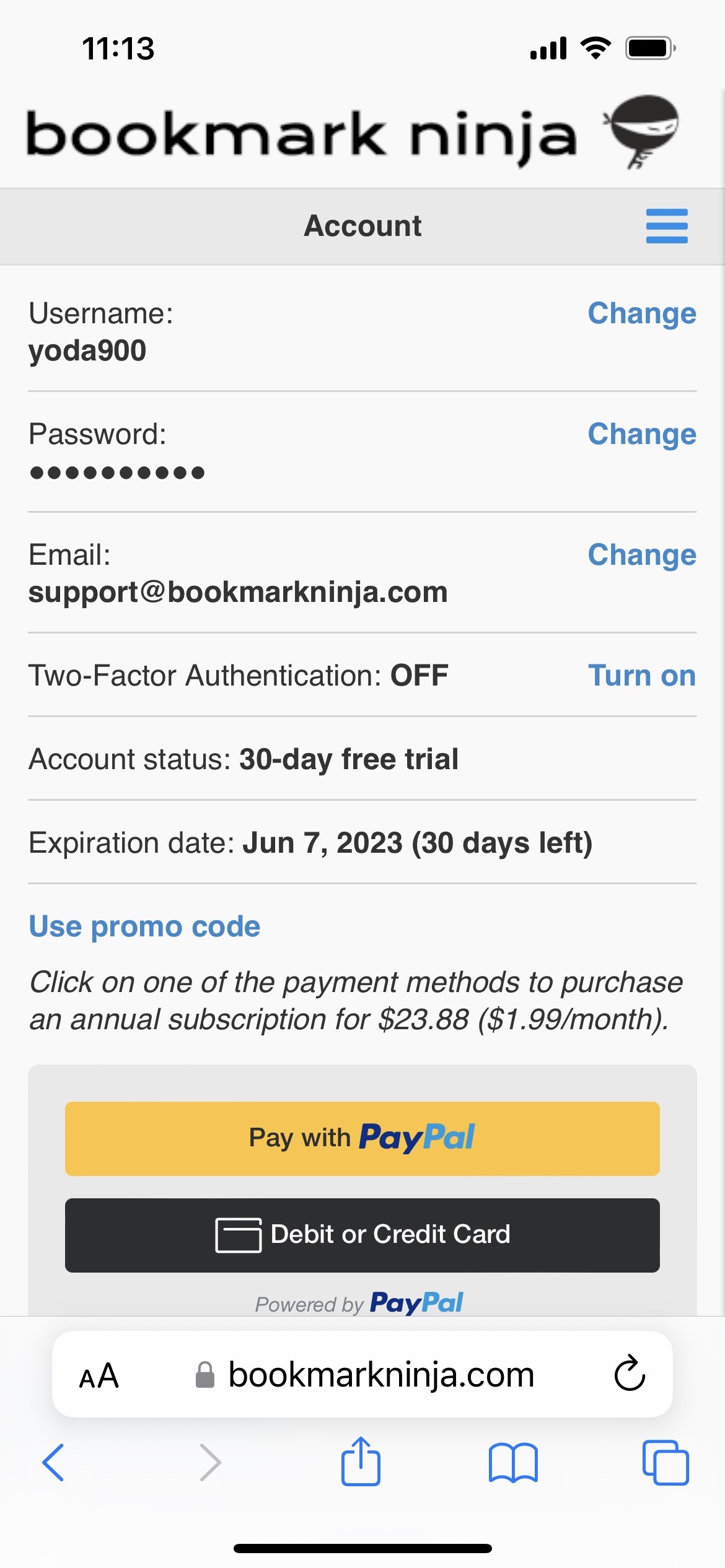
(2) On the "Account" page click on "Turn on" next to "Two-Factor Authentication: OFF". A security code will be sent to your email address and the "Turn on Two-Factor Authentication" dialog box will show up.

(3) Enter the code on the "Turn on Two-Factor Authentication" dialog box then click on "Turn ON".


How to login when Two-Factor Authentication is turned on?

(1) Click on "Login" in the main menu of Bookmark Ninja.

(2) Enter your username and password then click on the "Login" button or press enter. If it's not your computer then make sure to uncheck "Keep me logged in".

(3) If Two-Factor Authentication is turned on, a security code will be sent to your email address associated with your account.

(4) On the Two-Factor Authentication screen enter the code and click on the "Submit" button or press enter.

The security code that is sent to your email address is valid for 5 minutes.

If invalid codes are entered 5 times in a row you will need to re-enter your password and username.

How to turn off Two-Factor Authentication?

(1) Select "User/Account" in the main menu of Bookmark Ninja.

(2) On the "Account" page click on "Turn off" next to "Two-Factor Authentication: ON". A security code will be sent to your email address and the "Turn off Two-Factor Authentication" dialog box will show up.

(3) Enter the code on the "Turn off Two-Factor Authentication" dialog box then click on "Turn OFF".


How to change your email address when Two-Factor Authentication is turned on?

Since Bookmark Ninja is using an email-based Two-Factor Authentication, if you want to change your email address then the new email address has to be verified.

(1) Select "User/Account" in the main menu of Bookmark Ninja.

(2) Click on "Change" next to your email address.

(3) Enter your password and your new email address then click on "Save". A security code will be sent to your new email address and the "Verifying Email Address" dialog box will show up.

(4) Enter the code on the "Verifying Email Address" dialog box then click on "Submit".


Two-Factor Authentication on mobile devices

Two-Factor Authentication works the same way in mobile browsers as in desktop browsers. You can setup 2FA on the Account page and all the 2FA related pages have their mobile optimized versions.


Tuesday, March 28, 2023

Fixing the "error when user right mouse clicks on a bookmark" issue

Users might get the "Oops, something went wrong..." error message when they right mouse click on a bookmark on the Dashboard to invoke the bookmark context menu.

It happens when a browser extension is running in the browser that changes the content of the Bookmark Ninja Dashboard. It changes the IDs of the components of the web page (the Dashboard) which causes the error. This is a very bad behaviour of a browser extension, the browser web stores should refuse the submission of such extensions. These extensions can harm the functionalities of the web applications.

Typically browser extensions that translate the content of the web pages can cause such issues.

Please follow the steps below to fix the issue:

(1) Disable all the browser extensions in your browser.

(2) Enable the browser extensions one by one to find out which one causes the issue.

(3) If you find the browser extension that causes the issue add Bookmark Ninja to its exception list/white list (if there is any). Make sure you are using the full URL "https://www.bookmarkninja.com". If the browser extension doesn't support an exception list/white list then leave the extension disabled.

Thursday, February 16, 2023

Bug fix in today's update

Today's update includes a bug fix for the following issue:

When you entered tags during adding or editing a bookmark, the position of the tag autocomplete popped up panel was sometimes incorrect. It happened only in desktop browsers, in mobile browsers it worked fine.

The correct position of the tag autocomplete panel

Monday, February 6, 2023

Payment module updated

The payment module on the Account page has been replaced with the latest checkout payment module from PayPal. Now there is a dedicated button for the credit/debit card payment, so it's easier to make the payment with a credit/debit card without having a PayPal account.

Card payment was available in the past, too, but users first had to click on the PayPal button then select the credit/debit card option which was somehow confusing.

Other than the dedicated card payment button the new payment module includes the latest developments, fixes and updates from PayPal.

Wednesday, January 11, 2023

Improvements in today's update

Today's update contains performance improvements (some code has been optimized), security improvements and an advanced bot detection mechanism that prevents bots from creating fake accounts.